
Description:
You are now able to publish specific content to specific and groups of athletes via the Vision Console!
This guide will take you through all the relevant steps to publish content from the Vision Console to the new Vision - Athlete app.
Before proceeding, this article relies on you having set up Groups and Users via the Management Experience along with having a project with sections and playlists ready to publish via Vision.
Workflow:
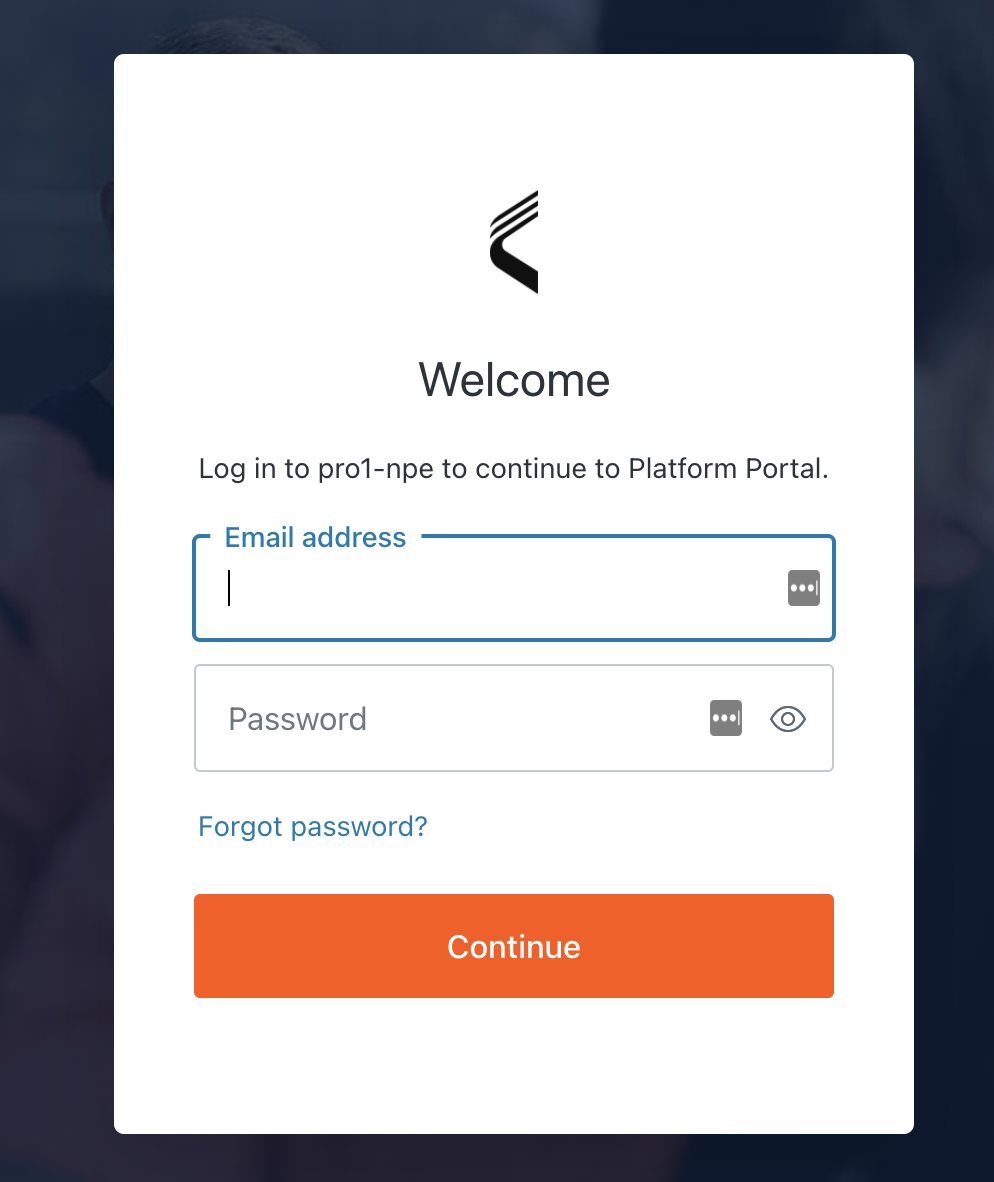
Log in and select Publish:
-
Open your finished project via the Vision Console.
-
Select Share from the top tab menu
-
Selecting the Share option will populate your current projects Sections and Playlists in the window
-
Select the Content to Publish:
-
Select publish to Pro One from the drop-down menu
-
Select the sections and/or playlists you wish to publish using the checkboxes on the left-hand side of the window. For your convenience, there is a 'Select All' option at the top of the screen
-
Each section will turn into its own item to publish to an Action Plan and share with specific players
-
Organization of what playlists should be included in an Action Plan should be done prior to the publishing step. For instructions, see here.
-
-
Once you are satisfied with the content you have selected press the 'Next' button located in the bottom right-hand corner of the screen

Edit your Content and select who to share with:
Once logged in, the content you have selected to publish will be visible via the Content Sharing Page and information will be pre-populated based on the work you did in your Vision Project. To publish the project to your Athletes:
-
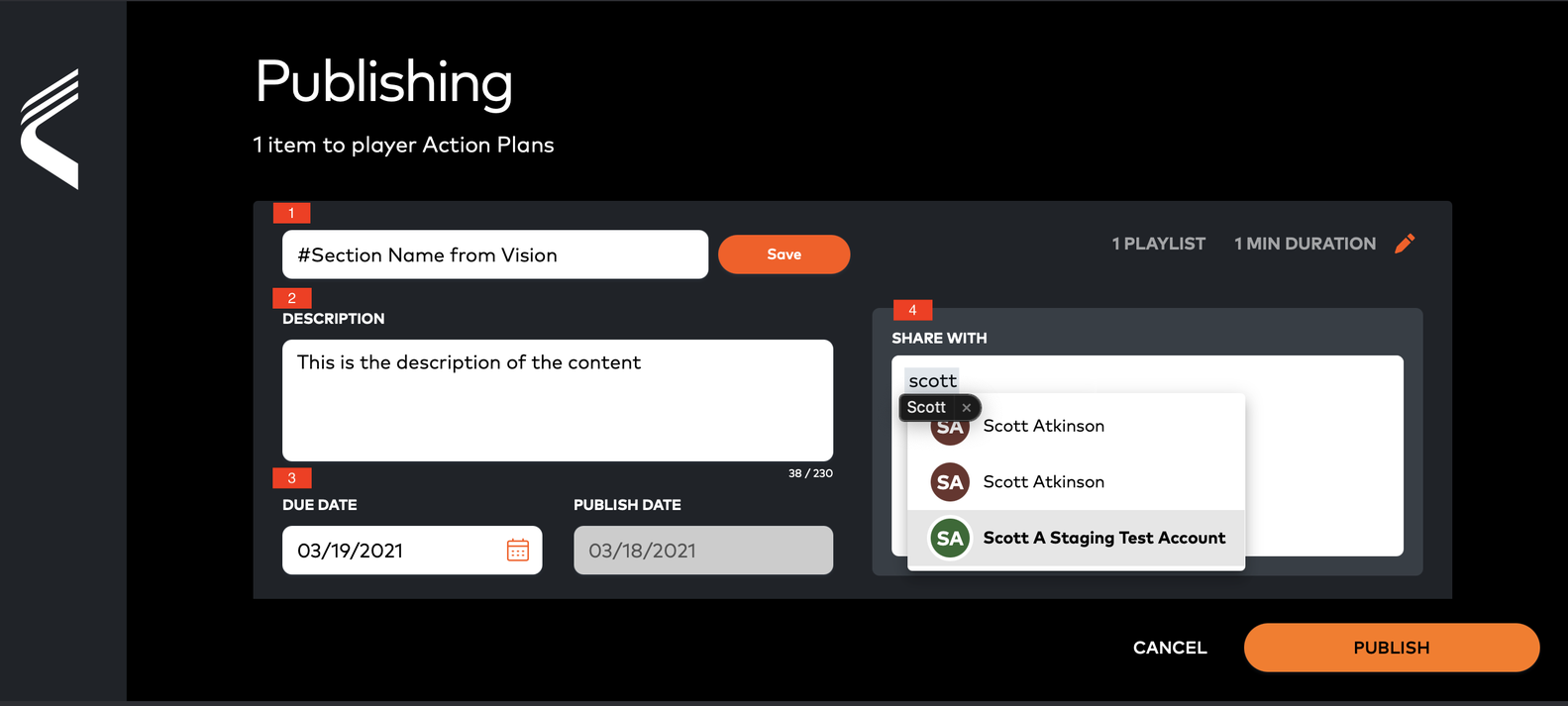
Enter the name of the item at the top of the screen - the name should tell the athlete what the group of videos will be teaching them. This will pre-populate based on the name of the Section within Vision.
-
Add a description of the content - this should give your athletes additional context on what you’re sharing with them and help direct their learning
-
Choose a due date when you expect athletes to have watched the content by
-
Determine which athletes to share the content with - enter the name of any athlete in your organization that the videos are relevant for
-
You may also enter the names of groups you’ve previously created via the Management Experience (i.e. forwards, offensive linemen, etc), which will let you choose which players from that group you want to share with
-
Please note that the search functionality requires three (3) keystrokes before populating suggestions (e.g if you type in ‘D' the Defenders group will not show, they will only show once you have typed in 'Def’)
-
-
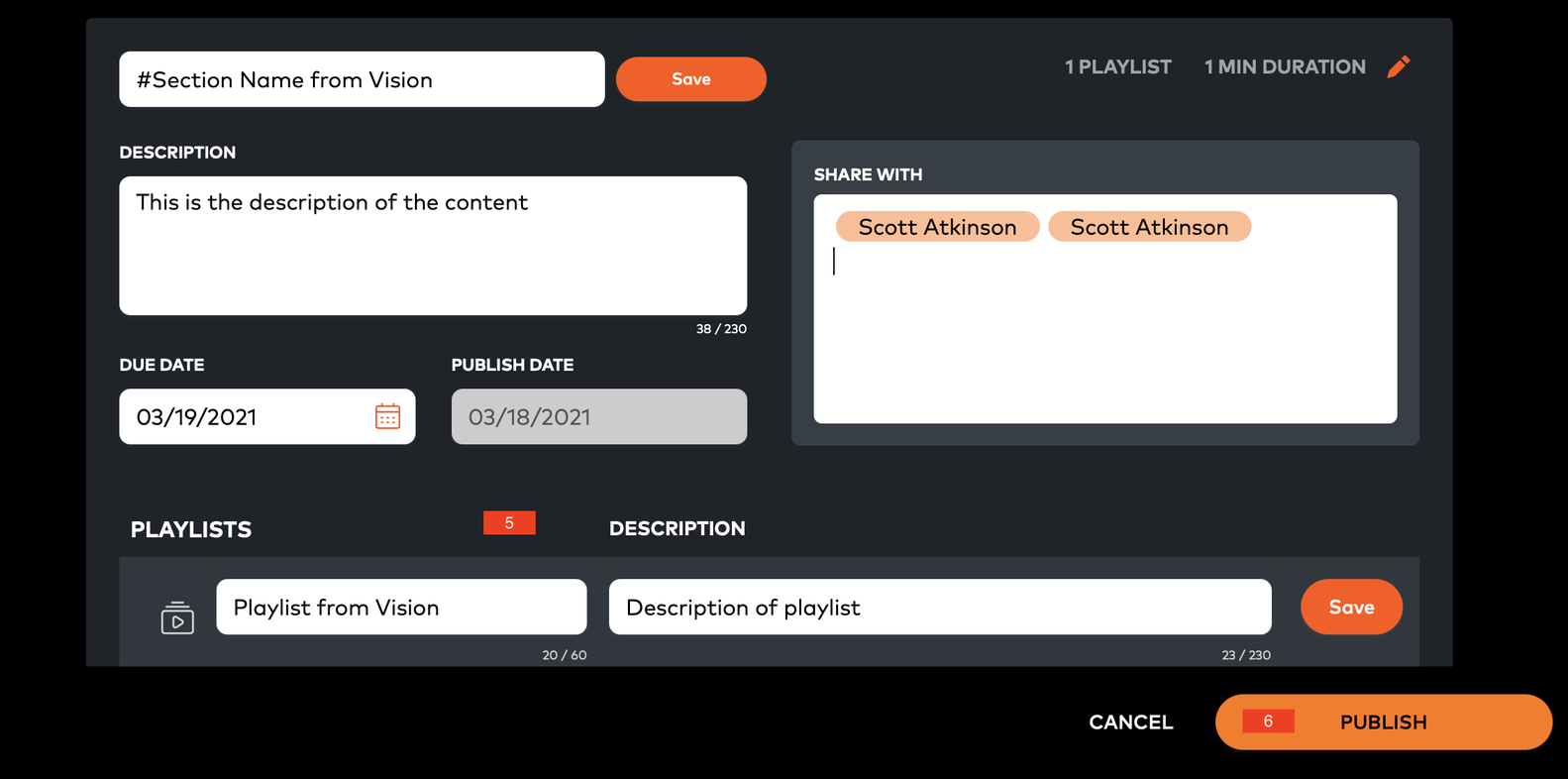
Click “customize playlists” to edit the name and description of the playlists you’re sharing with your athletes. The name of the Playlists will pre-populate based on the Vision Tag names.
-
Review your work and press Publish in the bottom left-hand corner.
So what happens next?
-
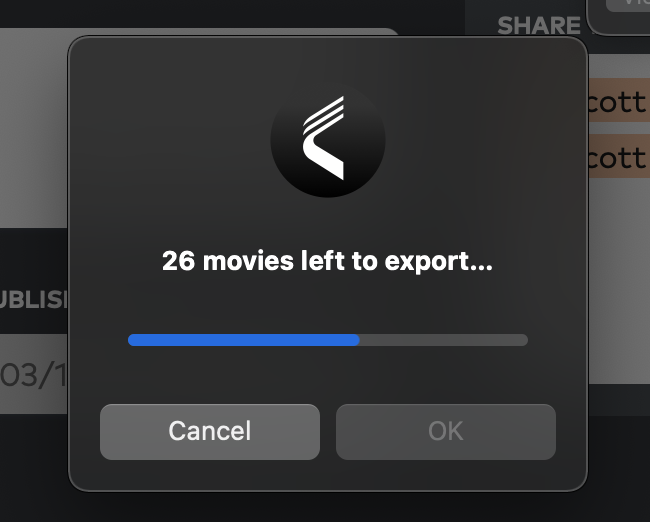
Once a successful Publish call has been made you will receive a confirmation message along with a status box detailing the progress of the export.
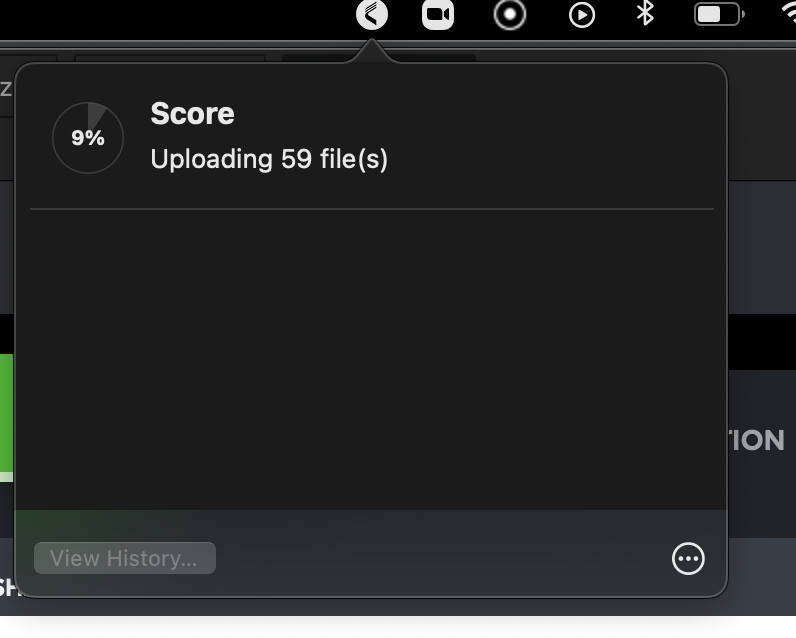
- Once the export is complete you are able to see the upload status via the Top Menu Background App. Click the Catapult Vision logo located in the top menu and then view the status of the content package.
-
Once complete the video will be processed and on the way to your athletes! However, if there is anything wrong with the video quality or files, you will receive an e-mail outlining this.
-
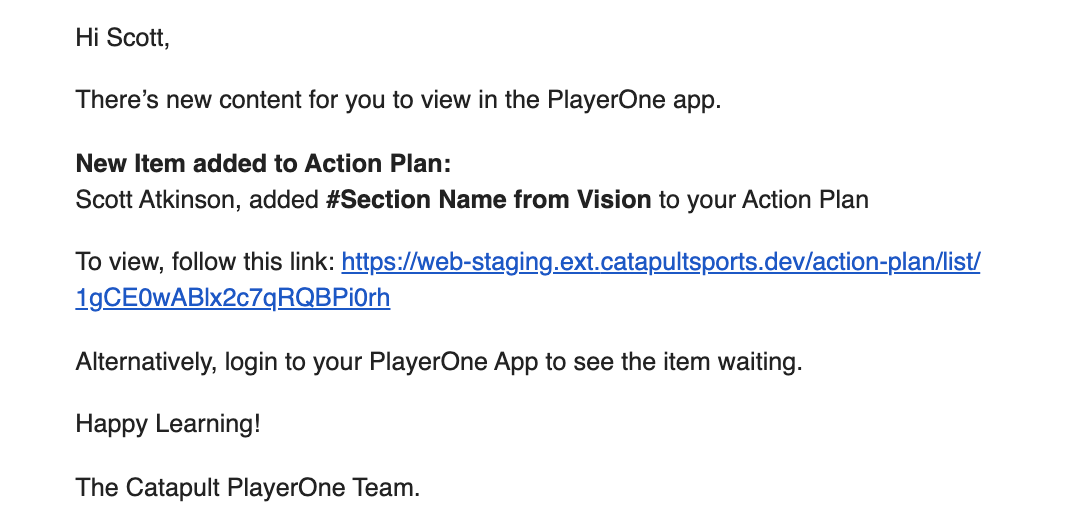
The User will receive an e-mail detailing that they have new content to view and complete. The content will be available for them via their Vision - Athlete App.
Comments
0 comments
Please sign in to leave a comment.